Phase 2 Registration Design
1. Overview
Phase 2 introduces a unified registration flow shared between Event and Membership registration. While implementation details differ between these registration types, the high-level flow is now common and includes several new capabilities.
Key Enhancements:
-
Optional OIDC authentication with anonymous fallback
-
Unified person management across registration types
-
Configurable question workflows via ProcessDefinition
-
Flexible payment options (online and manual)
-
Comprehensive notification system with scheduled communications
2. Registration Flow
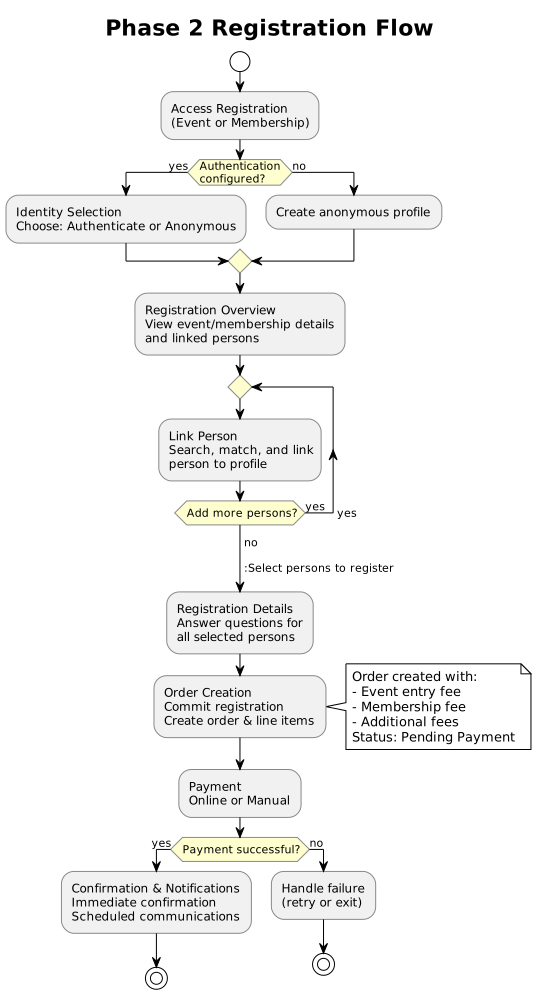
The registration flow consists of seven main steps:
| Step | Purpose |
|---|---|
Identity Selection |
Optional authentication via OIDC or anonymous access |
Registration Overview |
Central screen displaying registration context and linked persons |
Link Person |
Sub-process for searching, matching, and linking persons to the user’s profile |
Registration Details |
Sequential question phase driven by ProcessDefinition configuration |
Order Creation |
Commit registration and create order with line items (pending payment) |
Payment |
Payment selection and processing (online or manual) |
Confirmation & Notifications |
Transaction confirmation and scheduled notifications |
3. Step Details
3.1. Identity Selection
When the site is configured for authentication (typically via OIDC with a remote Identity Provider), users are presented with a choice:
-
Authenticate - Sign in via the configured OIDC provider to access their existing profile and linked persons
-
Continue Anonymously - Proceed without authentication; an anonymous profile is created for the session
If authentication is not configured for the tenant, users automatically proceed with an anonymous profile.
3.2. Registration Overview
The Registration Overview is the central screen of the registration flow, displaying:
Header Section:
-
Event or membership type being registered for
-
Relevant details (event date, membership period, pricing overview)
Persons List:
-
All persons currently linked to the user’s profile
-
Registration status for each person:
-
For Events: Whether already registered for this event
-
For Membership: Whether an active member for this membership type
-
Available Actions:
-
Add/link additional persons
-
Select persons for registration
-
View order, payment, and invoice details (if the current user was the original payer)
-
Cancel existing event registrations (subject to refund rules)
3.3. Link Person
The Link Person step enables users to add persons to their profile for registration. This is a sub-process of Registration Overview.
Step 1: Identity Search
Users enter identifying data to search for existing persons:
-
South African ID Number (preferred unique identifier)
-
Date of Birth (alternative search method)
Step 2: Person Resolution
-
Match Found - User selects an existing person from search results
-
No Match - User creates a new person with personal details
Step 3: Profile Linking
-
Existing Person - Linked with read-only permission
-
New Person - Created and linked with read/write permission
Users can repeat this process to link multiple persons before proceeding with registration.
3.4. Registration Details
The Registration Details step presents a sequence of questions configured via the ProcessDefinition system:
Question Presentation:
-
Questions are presented in configured order
-
Each question is answered for all selected persons
-
All selected persons are listed together for each question
Question Categories:
-
Personal Information - Capturing or updating person details
-
Emergency contact number
-
Medical conditions
-
T-shirt size
-
-
Registration-Specific - Details specific to the event or membership
-
Event category selection
-
Family membership eligibility and member selection
-
Completion:
The question sequence typically concludes with terms, conditions, and indemnity acceptance.
3.5. Order Creation
After completing the Registration Details, the system commits the registration and creates the associated order before proceeding to payment.
Registration Commitment:
The following entities are created and persisted to the admin-service:
-
Event Participant or Membership records (status: Pending Payment)
-
Order record (status: Unpaid)
-
Order Line Items:
-
Event entry fee (for event registration)
-
Membership fee based on membership type (for membership registration)
-
Additional fees (insurance, processing fees, etc.)
-
Order Details:
The order captures all financial details required for payment:
-
Total amount calculated from all line items
-
Reference number generated for the transaction
-
Buyer information linked to the registering user
-
Organisation context
State After Order Creation:
| Entity | Status |
|---|---|
Event Participant / Membership |
Pending Payment |
Order |
Unpaid |
Order Line Items |
Created with calculated amounts |
Payment Flow Integration:
The order details determine the next step:
-
Online Payment: The order reference and total are used to create a corresponding WooCommerce order with matching line items. The user is redirected to the payment gateway.
-
Manual Payment: The order reference number is displayed with a QR code for staff to process payment at the registration desk or club house.
Backend Payment Callbacks:
When payment state changes occur (via WooCommerce webhook or backend completion):
-
WooCommerce plugin calls back to admin-service with payment status
-
Order status updated (Paid, Failed, Cancelled)
-
Associated registrations transition accordingly:
-
Paid → Event Participant/Membership becomes Active
-
Failed/Cancelled → Remains Pending Payment (allows retry)
-
Similarly, if an order is completed directly on the backend (e.g., manual payment captured by staff), the same state transitions occur.
3.6. Payment
After completing the Registration Details, users proceed to payment:
Online Payment:
-
Processed via WooCommerce integration
-
Standard payment gateway flow
-
Immediate confirmation upon success
Manual Payment:
Available for specific tenants or scenarios (e.g., registration desk at events, club house for memberships):
-
System generates a reference number with QR code
-
User presents QR code to staff on their device
-
Staff scans/enters reference on the registration system
-
Staff captures: amount, payment method, and outcome (paid, declined, or cancelled)
3.7. Confirmation & Notifications
Upon successful payment, the system initiates notifications:
Immediate:
-
Transaction confirmation (email/SMS)
-
Registration summary
-
Receipt/invoice
Scheduled:
Long-running processes execute based on events and schedules:
-
Membership: Welcome message, membership card, expiry reminders, renewal prompts
-
Events: Event details, location/directions, program updates, pre-event reminders, post-event results
4. Registration Types
4.1. Event Registration
Event registration follows the common flow with these specifics:
-
Entry point: Event registration route
-
Registration Overview shows event details and participant status
-
Registration Details may include category selection
-
Cancellation available with refund rules applied
4.2. Membership Registration
Membership registration follows the common flow with these specifics:
-
Entry point: Membership registration route
-
Registration Overview shows membership period and member status
-
Registration Details may include family membership configuration
-
Active memberships prevent duplicate registration
5. Interactive UI Prototypes
Interactive HTML prototypes are available for key screens in this flow. See Screen Designs - Interactive UI Prototypes for the complete list with links to:
-
Identity Selection - Authentication choice screen
-
Registration Overview (Membership) - Person selection
-
Registration Overview (Event) - Participant selection
-
Payment Selection - Payment method choice
-
Manual Payment QR Handoff - Staff capture screen